Desertcart purchases this item on your behalf and handles shipping, customs, and support to GERMANY.
🚀 Elevate your Wi-Fi game with flexible, fast, and fearless networking!
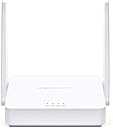
The TP-Link Wireless N300 TL-WA801ND is a versatile 2.4GHz access point delivering up to 300Mbps speed with 802.11b/g/n compatibility. Featuring four operational modes—Access Point, Client, Repeater, and Bridge—it adapts to diverse networking needs. Its dual 4dBi antennas and Passive PoE support enable flexible indoor deployment up to 30 meters from power sources. With easy QSS push-button security setup and advanced channel conflict avoidance, it ensures reliable, secure wireless coverage ideal for extending or enhancing home and small office networks.


| ASIN | B004UBU8IE |
| Antenna Location | Indoor/Outdoor |
| Best Sellers Rank | #475 in Computer Networking Wireless Access Points |
| Brand | MERCUSYS |
| Built-In Media | 2-Antennas, Access Point Tl-Wa801Nd, Ethernet Cable, Passive Poe Injector, Power Adapter, Quick Installation Guide, Resource Cd |
| Color | White |
| Compatible Devices | Laptop |
| Connectivity Protocol | Wi-Fi |
| Connectivity Technology | Wireless |
| Control Method | App |
| Coverage | up to 100 feet (indoors) |
| Customer Reviews | 4.2 out of 5 stars 4,596 Reviews |
| Data Transfer Rate | 300 megabits_per_second |
| Frequency | 2.4 GHz |
| Frequency Band Class | Single-Band |
| Global Trade Identification Number | 06935364051419 |
| Item Part Number | TL-WA801ND |
| LAN Port Bandwidth | 10/100 Mbps |
| Manufacturer | TP-Link IP Cams |
| Maximum Upstream Data Transfer Rate | 300 megabits_per_second |
| Mfr Part Number | 2325140 |
| Model Name | TL-WA801ND |
| Model Number | TL-WA801ND |
| Number of Ports | 1 |
| Operating System | Microsoft Windows 98SE, NT, 2000, XP, Vista or Windows 7, 10, MAC OS, NetWare, UNIX or Linux. |
| Other Special Features of the Product | Access Point Mode, WPS |
| Router Network Type | wireless |
| Security Protocol | WPA-PSK |
| Special Feature | Access Point Mode, WPS |
| UPC | 809186281582 168141651267 112040011493 191120100593 745449844296 845973051419 115970741669 132018351284 151902933474 014444453865 809385676431 803982787224 809185824964 |
| Voltage | 240 volts |
| Warranty Description | 2-year warranty |
| Wi-Fi Generation | Wi-Fi 4 |
| Wireless Communication Standard | 802.11n |
| Wireless Compability | 802.11n |
A**Y
WORKS GREAT AND SOME COMMON PROBLEMS ARE EXPLAINED HERE
I was having some trouble with a wireless D-link security camera in my detached garage constantly dropping offline as my router is a good distance away. I configured the TL-WA801N in the wireless repeater mode and placed it in a storage shed which is located halfway between my house and garage -- instantly my security camera came back online and has stayed that way with a strong connection. I am not a computer expert so I was a bit confused when I first tried to configure this but a quick phone call to TP-Link support and they patiently walked me through the process which in reality is quite simple to do. This repeater has been working so well in the shed that I just added a second TP-link repeater in my kitchen which has always been a dead zone for my Wifi. The second time I had to configure this repeater it took all of one minute to complete and I am embarrassed when I think back that I even had to call TP-link support for the first router as it is ridiculously simple even for an amateur like me. Someone else has posted a review here with a long list of networking terms that he said you should be familiar with before trying to configure this repeater and that is nonsense - I have no trouble configuring this now without even needing to review the instructions. My Kindle, laptop, and iPhone now have great Wifi reception in the kitchen. Just remember one very important point that I am sure many of the people who posted a review claiming this had poor range, would not connect, or needed to be rebooted often just do not realize...You must manually refresh your Wifi setting on your wireless devices whenever you move to another part of your house as that does not automatically happen even if you are using the same network name and password as I am. This allows your tablet, laptop, or smart phone to find whichever wireless access point is offering the strongest signal in that part of your house and lock onto it. if you don't do this it is possible to be sitting right next to this repeater but your Wifi connection on your laptop or tablet will still be locked onto your original access point or router on the other side of your home. Also, remember that if you set this up too close to another device with a repeater or access point enabled you will get a congestion of radio waves which cause a feedback effect that will knock your devices off the network and require them to be rebooted often. This feedback effect is similar to when you put a microphone too close to your speakers which causes a loop of over-amplification - the same thing can happen with radio waves and causes devices to crash. I have even talked to tech people who were unaware of this problem but I have seen it happen again and again with my own home network that includes several IP security cameras with repeater modes - as soon as I disabled one or two of the repeater modes that were too close to each other, or moved them farther away from each other, the crashes quit happening. UPDATE: I am the type of person who just can't leave things alone even when they are going well so I recently took the TP-link repeater in my kitchen and reconfigured it as a wireless access point and hooked it to a network cable...WOW...As a wireless access point it puts out the same speed as the Gateway router I have it hooked to which is 60 MB per second so obviously this is the best configuration to go with if you don't mind running wires around your place. When the weather gets a bit warmer I plan to run a wire out to my shed and reconfigure the TP-link repeater there to the wireless access point mode and have high speed internet allover my backyard. For the price this is an amazing piece of home-networking hardware. And by the way, if you are having problems with this access point crashing often the fix is simple -- UPDATE TO THE LATEST FIRMWARE at http://www.tp-link.com/lk/products/details/?model=TL-WA801ND#down
B**L
Easy to set up, and most importantly, It Works!
New Update 3/10/17: I was having trouble as I described below in my previous update. I was going to return it for a replacement from TP-Link. i called their toll free number, and it turns out I spoke to a very knowledgeable tech ( In China), that the problem I was experiencing can happen if I had my WAP set to a channel that would compete with a neighbors router that was using the same channel. I have an App on my cell phone called WiFi Analyzer from Kevin Yuan (free) that showed me the channels being used nearby in the neighborhood and recommended which channel(s) would be best for me to use on my TP-Link WAP. I did just that and also as the tech recommended, changed the channel width to 20 Mbs and VOILA, no more problems. The only reason I know the tech I was speaking to was in China is because I asked her. She really knows her stuff and was SO polite and willing to help. GREAT tech support from TP-Link! I restored my rating to 5 Stars ================================================================================================= OK, here is an update: It is about 2 1/2 months since I set up and installed this unit. It did work fine for a while, but I noticed a few weeks ago that the signal from this unit keeps dropping out. It is too late to return it to Amazon for a refund (only a 30 day window), so I have to contact the manufacturer and request an RMA repair under warranty. Shipping will most like be at my expense and may not be worth it. I'll see. The TP 801 unit I bought in 2013 is still working fine, so there is something wrong with this one and I downgraded the review to 3 stars from 5 stars. ============================================================================================== I've tried several methods of extending my WIFI coverage in my house from my Netgear WNDR3700 Router which is in a room at one end of my house. WIFI Coverage was spotty when I tried to connect to it more than 25 feet away because of several walls the radio signal seemed to have trouble with. I purchased this item because it is really inexpensive and is flexible in what in can do. I hooked it up with an Ethernet cable and used the POE power injector this unit came with, but before I did that, I used my Laptop to connect to it wirelessly using the default IP address this unit came with: 192.168.0.254 and logged in as instructed in the little quick setup manual that came with it. I made sure it was configured as an Access Point (it was by default) I changed its IP address to be within my networks range and set it up with my WIFI SSID and Pass phrase. I am not an expert on this by any means, but I've been through this when I tried using other devices to accomplish what I needed. This device works perfectly for what I need it for: A wireless access point. I did not try to use it as a repeater or any other of the selections possible to set this unit up as. Bottom line is I found what I need for very cheap. I hope this lasts a long time, and that will make this thing PERFECT. It's only one day so far, lol.
L**O
two out of three units died-but re-flashed firmware to correct
We had purchase one earlier and had success. We ordered two more to communicate with our church rectory and school. Both died within days with the same symptoms; would stop communicating by hard wire as wireless would work. We have one network in our rectory with several computers and another at our school so they cannot communicate. Instead of sending back to Amazon we are going through the manufacture as an RMA as this is unacceptable infancy defects. The first one is still working. So on this one I will give it one star. Update I did get an automated response from TP-Link. One thing that I noted the two units that failed were only 10 numbers off the serial number and the unit that is still working was 3000 numbers earlier in the serial sequence. So it is possible a bad batch problem. The last four digits of the serial 8600 were the ones that had a failure and the one that is working 5300. Hopefully they will get in touch with me. 2nd Update I was about to write to support when there letter and suggestion came in the e-mail. I wrote back and this may be helpful what I did. Dear Ted,Abby and Dora, As your, drawing suggests is not quite what we did; The rectory has TP-Link set as an Access Point which is connected to several computers in the office. We were trying to set the other TP-Link as a Bridge with Access Point which is also hard wired to the computers in the school. Okay today I sat down with both units and figured something is wrong but it may be software related and not hardware as I thought. I thought I had bricked one of them when I reset it several times a few days ago as it stopped communicating by ether net. Today I turned that one on did a reset and I was able to communicate so I downloaded the most resent firmware re-installed and this time it took: meaning no freezes it has been working since 11:00 AM in my home. My home network is set up identical IP Addresses as I have at the Church/School this way I could test hard ware to see if they would work. I had not done this with your product as the first one I bought a few days works flawlessly in my home. What a great product as it work flawlessly. My original one that is working is in the rectory and one of the priest that lives there it happy that he can use his iPhone and MacBook Pro laptop. Now the last one that I would reset the IP Address from the default to 192.168.1.99 would change reboot but would not connect (yes I change my EN0 port to that address series). In system preferences-network the port would blink connected -not connected and kept this back and forth forever never setting to one state or the other. I would reset to default it would be rock steady but I don't want to change the system at the school and church as I do not use a DHCP server as each unit has a set IP ADDRESS. At first I thought the ethernet port on the TP-Link may be loose or the wires deformed but on inspection I could not visually see anything wrong. Since I am not about to open the product and void the warranty as I am retired from GE I no longer have access to any lab equipment that I had used. So lets re-install the firmware but lets use one version behind so I downloaded that..it installed but no JOY it did it on and off connection state after I changed from default to new IP Address. So I repeated the firmware update but this time used the current firmware. This time it actually work. I really do not know what caused it to fail or why. The set up is actually what it will be at our Church and school. AP at church and Bridge with AP at the school. Right now it is working in my home network that has an Access Point and a MacPro Tower just connected to the TP-Link by itself and it working. I will leave the bridge on for full day and if it works I will get back to the three of you to let you know what happened. I am really IMPRESSED that your support team did get back and try to work a solution. Who would of though it just may have been a fluke firmware or as we called it a stuck BIT.
N**K
Works well to extend WiFi to additional rooms.
I have a TP-Link C9 802.11ac router attached to our Motorola DOCSIS-3 cable modem. I was looking for ways to extend our WiFi into our family room (to talk to our with a TV with a Chromecast, internet-connected BluRay player, laptops, phones, tablets, etc.) and our two offices with various PCs, Macs, and printers (some without WiFi), without having to run Ethernet cables to the various rooms. I originally got 3 each TP-Link C5 boxes and tried to use the WDS Bridge mode to connect to the C9 box (bridging the 2.4 GHz radio band). I couldn't get it to work properly with more than one of the C5 boxes. Pings would fail, I wouldn't be able to see the printers attached to the C5s, etc. It seems like the WDS Bridge mode only works with one client Bridge with this combination of hardware. The WA801ND listed a few more bridge-like modes, so I took a chance and ordered 3 to replace the 3 C5 boxes, and ordered 3 each TP-Link gigabit switches to connect the fixed internet-enabled boxes. The setup was quick and painless. I ended up using the "Universal Repeater" mode on the WA801ND boxes, and everything works fine now. Everything can see everything else on the network, speeds are great, printers work find from all our PCs and Macs, our smart phones, Chromecast, tablet and Chromebook, all work fine. I see in another review here that someone apparently has a similar network working with the "Client" mode, though the details may be different. I didn't try that. The TP-Link hardware seems to be of high quality, and it works well once you get everything talking in the proper modes. If you have a similar home network, this combination of the C9 and WA801ND boxes is well worth considering. Hope this helps. Cheers, Scott.
B**T
Finally, a WAP that works..
I tried other wireless routers and extenders and got nothing but frustration. After installing this WAP, I finally got the results I've been desperately searching for. I'm using it in Access Point mode connected to the main router via a Powerline kit. It sits in the center of the house. The entire house is getting excellent signal with 5 bars and the range is amazing. It's even better now that I swapped in some 9dbi antennas from ebay. Even when I move to the edge of the property behind the detached garage, I'm still managing 3-4 bars. Speakeasy.net's speed test reports 22mbps down when standing next to the WAP and 6mbps down when standing outside behind the garage. I'm testing with a Dell Latitude D630 with an Intel wireless adapter. The web admin console is adequate and straight forward. The setup takes some work, but is easily accomplishable. Connect a laptop to the WAP using a cable and change the laptop's Local Area Connection settings, IP 192.168.1.100 / Subnet 255.255.255.0 / Gateway 192.168.1.254. Next, hit the admin console in the web browser at 192.168.1.254 using admin/admin. Adjust settings accordingly, save, restart, and enjoy. This WAP worked out very well for me and I couldn't be happier. For the price, you can't beat it. Also, the included passive POE adapter is a nice bonus!
R**D
Reliability problems spoil this AP.
The bottom line: DO NOT BUY this device. All releases of the firmware have a bug which stops new connections (2), so you will suddenly find that a website that you haven't visited for a few hours or days will no longer work on a particular device, even if other devices or other websites are still OK. Even daily reboots do not eliminate this problem. Update 11-Oct-2015: The "new connection" problem (2) happens even if you reboot the device every day. A day or two after my previous update I set up automation so that the AP is rebooted every day (for the technically curious: I set up a second IP address on an aliased loopback interface on a server and point the AP watchdog timer at that IPaddr. I have a cron job that shuts down the interface for ~1 minute every night, so that the watchdog pings to the IP address fail, which in turn causes the AP to reboot). Even so, on some days the AP stops allowing new connections after just a couple of hours. I have the most recent firmware (150-422, released Apr-2015). Update 18-Aug-2015: The most recent firmware (150-422) fixes the chromecast problems (3) but the "new connection" problem (2) persists. Original review 29-Dec-2014: When I first set this up, it seemed OK. Having the PoE injector was a nice bonus, saving me the trouble of having to run a mains electrical circuit for it where I wanted to mount the AP. After a few months of use, however, I'm increasingly unhappy with it, so much so that I'm going to shop around for a different brand. Here are the problems I've noticed: 1) The WiFi stops working. I can still ping the device and log into the web console via the EtherNet interface, so I know the AP isn't completely down. A reboot (either with the power switch) or via the web console fixes the problem. This happens roughly once or twice a week. My work-around for this is to use the ping watchdog utility built into the AP to ping an always-on WiFi printer, so the system should fix itself automatically. 2) New connections stop working. This is pretty strange. A WiFi device (like a laptop or a phone) can reach some hosts and not others. For example, I could ping various hosts on my home network (both ones on the WiFi and others on the internal EtherNet) and some others on the Internet, but not other Internet hosts. This happened at least once (when I took the time to diagnose rather than just reboot, and before the time I set up the ping watchdog). This smells like a connection tracking table filling up, which is surprising since the Linux kernel Netfilter-based connection tracking code is pretty solid and unlikely to be maxed out by typical home use. My router is also Linux based and I've *never* had any such problem with it. I guess they have either messed with that code, or added another connection tracking layer for some reason. There isn't a good work-around for this, since the ping watchdog utility will probably pin an entry in the connection table and hence won't notice the problem. 3) Google Chromecast devices can't be set up with the current latest firmware (140-425). The Chromecast signs into the WiFi OK and negotiates an IP address from the DHCP server just fine, but the setup process does not complete (it seems that other devices on the WiFi network can't talk to the Chromecast). Down(up?)grading to 130-121 fixed that problem. I upgraded the firmware to 140-425 in the first place to attempt to fix the reliability problems (I think it made it better, but don't have enough data to be sure), so I found this annoying. 4) By default, it starts up with a static IP address. This makes initial set-up tricky if the IP address they chose is not convenient on your network, requiring the temporary setup of an aliased EtherNet interface and routes. I think this is a stupid default. At the very least, there should be a jumper setting to change this default. 5) Firmware updates clear all settings. If you want to try different firmware versions to get something working (see #1 and #3), you have to go through the pain of #4 for each experiment. If TP-Link were more pro-active and prompt with providing firmware updates to fix these issues, I could upgrade and move on with life. But it's bad enough that I just want to run away from the device and the manufacturer. Maybe an access point from a different manufacturer will suck less.
S**.
Did the trick - wifi in to my metal shop, very impressive
I was having trouble getting wifi into my metal shop. I am well acquainted with the Faraday cage concept and the integration (math) that shows no electromagnet field can penetrate a conductive shell, I did the aperture math with frequency and wavelength that shows an approximately 5 in hole is needed for 2.4 GHz wifi waves to penetrate. Apparently the laws of physics don't apply to this unit. Surely the shop has some air gaps near doors and the roof ridge. On a sunny day, with not lights on in the shop, sunlight breaks through through the cracks. This unit manages to grab enough wifi signa through the metal walls, amplify it and rebroadcast for interior use. I set it up in "bridge/repeater mode" and it was fairly easy. For comparison, the TP-Link CPE210 was too difficult for me to setup as I struggled with the fixed IP address requirement with my modem and router. after installation of the "TP-Link Wireless N300 2T2R Access Point, 2.4Ghz 300Mbps, 802.11b/g/n, AP/Client/Bridge/Repeater, 2x 4dBi, Passive POE (TL-WA801ND)" I was able to stream Netflix and youtube. If later the performance is found to be inconsistent, I will drill a 1/2 inch discrete hole in the shop wall and mount the unit inside with one antenna pocking outside to have line of sight to the source wifi signal. This is an impressive and cost effective product. Other solutions to the faraday cage scenario are $150 to $250 and are sold for RVs.
S**C
Better options out there for the same or not much more money.
This router is just ok. I suppose for the price, it does its job, but I think there are better options out there for the same or not much more money. Setup was easy to use as a router, but it is noticeably slow in comparison to my other routers. I purchased this one for use on the road for my kids (mostly for Minecraft on their iPads) and for an non-secure wireless network not connected to the internet. I have done this for two reasons: 1. So that my kids can't burn up our data cap with YouTube videos. 2. So that I don't have to worry about what they're seeing on their iPads while watching YouTube videos. For very simple home wi-fi needs, this is likely sufficient. If you have a gamer in the family, don't go here. Using it as a wi-fi extender did not work well with my network. Granted, I didn't expect it to work flawlessly with my dual-channel router, but several devices such as my printer just simply did not work in this mode.
C**S
Ótimo produto
Ótimo produto, atendeu minha necessidade de repetição do sinal com perfeição. Além de ter chegado com rapidez.
M**T
Works as advertised!! Best Repeater
This is my two month review- Purchased this as a replacement after my 5 year old tp-link repeater (older model) stopped functioning. I am using this in the repeater/wireless bridge configuration to connect my two offices which are 40 meters apart. I have installed it in one of my offices to connect in total of five PC's wired and wireless Pros- 1. Excellent reception from my Dlink dsl-2750u modem-router. It extends the range of to my Dlink modem-router in one office to the entirety of my second office. 2. File access has improved considerably over my old repeater. Access times are excellent for files from my shared folders. 3. Excellent range despite 3 other offices and 4 walls and not to mention other wireless networks in between my two offices. 4. No connection drops Cons - 1. None so far. It works for my setup so no cons as far I can say. I haven't tried the other modes so can't help out there. Will keep posted in a years time.
M**T
Très bon produit
Utilisé pour couvrir en Wi-Fi un hôtel en répétant ce produit nous donne pleine et entière satisfaction ! Simple à configurer en mode point d'accès ils sont opérationnels en moins de 5 minutes après avoir été reliés au réseau local.
N**R
Funciona Genial. Gran ampliación de cobertura
Funciona muy bien. Lo he probado solo en modo repetidor, pues es el modo que necesito. La cobertura que ofrece es muy amplia. Fácil de configurar. Las instrucciones son claras. En ocasiones el móvil no obtiene la ip. Pero con apagar y encender el aparato, es suficiente. Me ha pasado solo con Mi Xperia Z2. No es nada grave ni tiene importancia. Otro fallo que tiene es la "estabilidad ", pues tiene a irse hacia atrás, por el peso de las antenas, pero es una incidencia poco importante. Y,como siempre, Amazon lo empaqueta a la perfección. Envío rápido. Información continua y con la app para Android te mantiene actualizado en todo momento.
R**A
Excelente opción para hogar o pequeña oficina
Es una excelente opción para el hogar o una pequeña oficina ya que permite tener hasta 4 redes inalámbricas y pueden estar aisladas una de la otra, su configuración utilizando el manual es simple y hasta cierto punto intuitiva, para acceder a su panel de control la mejor manera es utilizando la IP que le asigna el router. El alcance de la señal es standard, se puede mejorar cambiándole las antenas por unas de mayor ganancia
Trustpilot
3 days ago
1 month ago